Food Service Account Payments in the New Family Access
Making Food Service payments in Family Access looks a little different now that the Enumclaw School District has updated to the latest version of Skyward Family Access.
View instructions for making a payment in Family Access on a computer or in the mobile app below.
From a Computer:
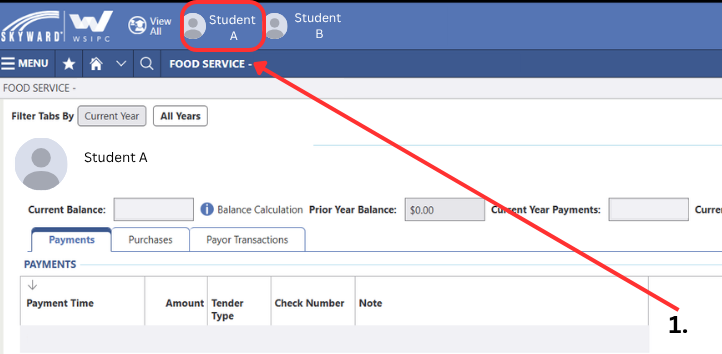
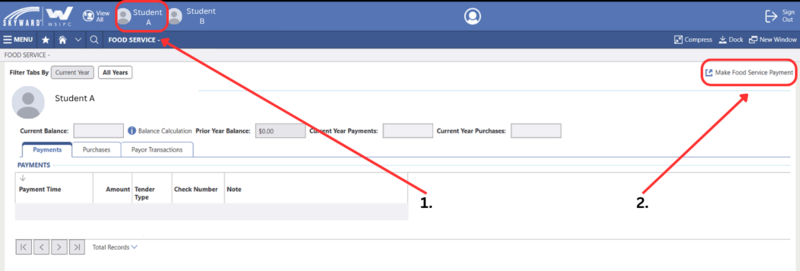
Log in to Skyward Family Access and select "Food Service " from the main menu.
For families with multiple students, while on the Food Service Menu, first select the student you would like to make a payment for at the very top of the screen by clicking the student's photo or name.
Click the "Make Food Service Payment" in the right-hand corner to access the Revtrack payment system.
Log in to Revtrack and follow the prompts to make your payment.
From the Skyward Mobile App:
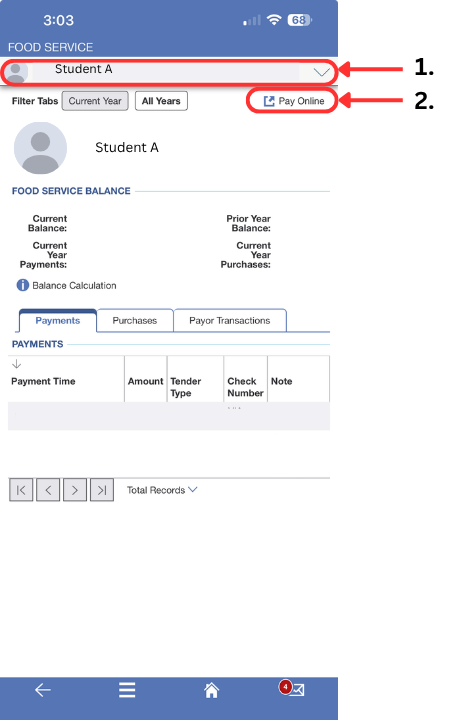
Log in to Skyward Family Access using the Skyward App and select "Food Service " from the main menu.
For families with multiple students, while on the Food Service Menu, first select the student you would like to make a payment for at the very top of the screen by clicking the student's photo or name in the drop down.
Click the "Pay Online" on the right-hand side underneath the drop-down to access the Revtrack payment system.
Log in to Revtrack and follow the prompts to make your payment.
For more information on Skyward Family Access visit: https://www.enumclaw.wednet.edu/page/family-access